Programs and processes · โปรแกรมและกระบวนการ
This page needs a recent browser (with SharedArrayBuffer support). Please update Chrome, Edge, Firefox or Safari to the latest version. · หน้านี้ต้องใช้เบราว์เซอร์ล่าสุด (รองรับ SharedArrayBuffer) กรุณาอัปเดต Chrome, Edge, Firefox หรือ Safari เป็นเวอร์ชันล่าสุด
English
What is a process?
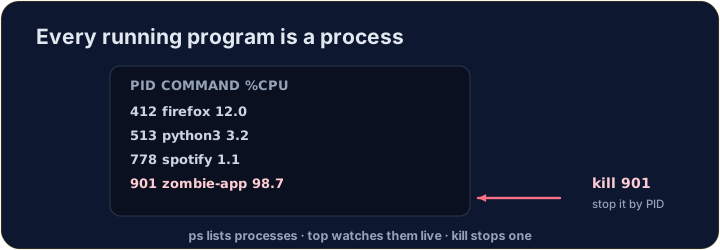
- A process is a running program. Your browser, your editor, and the shell itself are all processes.
- Each has a number — a PID (process ID) — that the system uses to keep track of it.
- (These commands talk to the real operating system, so they aren't part of our simulator — but here is what you'll use on a real machine.)
ไทย
กระบวนการคืออะไร?
- กระบวนการ คือโปรแกรมที่กำลังทำงานเบราว์เซอร์, ตัวแก้ไขข้อความ และ shell เอง ล้วนเป็นกระบวนการทั้งนั้น
- แต่ละกระบวนการมีหมายเลข — PID (Process ID) — ที่ระบบใช้เพื่อติดตามมัน
- (คำสั่งเหล่านี้สื่อสารกับระบบปฏิบัติการจริง ดังนั้นจึงไม่ใช่ส่วนหนึ่งของ我们的จำลอง — แต่นี่คือสิ่งที่คุณจะใช้ในเครื่องจริง)
English
Seeing what is running
pslists your processes;ps auxlists all of them.top(or the nicerhtop) shows a live view that updates every second — handy to spot a program using too much CPU or memory:
- Press
qto quittop.
ไทย
การดูสิ่งที่กำลังทำงาน
psแสดงรายการ กระบวนการของคุณ;ps auxแสดงรายการ ทั้งหมด ของมันtop(หรือ-enviroment-friendlyกว่าอย่างhtop) แสดงมุมมอง แบบเรียลไทม์ ที่อัปเดตทุกวินาที — มีประโยชน์ในการตรวจสอบโปรแกรมที่ใช้ CPU หรือหน่วยความจำมากเกินไป:
top
- กด
qเพื่อออกจากรายการtop
English
Stopping a process
- If a program is frozen, you can stop it. In the terminal, Ctrl-C stops the program running right now.
- For another process, find its PID with
psand thenkillit:
killpolitely asks the process to stop;kill -9forces it. Use force only as a last resort.
ไทย
การหยุดกระบวนการ
- หากโปรแกรมค้างอยู่ คุณสามารถหยุดมันได้ ใน terminal Ctrl-C จะหยุดโปรแกรมที่กำลังทำงานตอนนี้
- สำหรับกระบวนการอื่น ให้หา PID ของมันด้วย
psแล้วkillมัน:
kill 1234
killขอให้งานหยุดอย่างสุภาพ;kill -9บังคับให้มันหยุด ใช้การบังคับเป็นทางเลือกสุดท้ายเท่านั้น
English
Now you try
ps,topandkilltalk to the real OS, so they are not in our simulator.- Instead, a snapshot of
psoutput is saved inprocesses.txt. Use the file tools you already know —grepandwc— to find the CPU-hog and count the processes.
ไทย
ลองดูเลย
ps,topและkillสื่อสารกับ OS จริง ดังนั้นจึงไม่มีอยู่ใน我们的จำลอง- แทนที่จะเป็น那样, snapshots ของ output จาก
psถูกบันทึกไว้ในprocesses.txt. ใช้เครื่องมือจัดการไฟล์ที่คุณรู้จักอยู่แล้ว —grepและwc— เพื่อค้นหาตัวกิน CPU และนับจำนวนกระบวนการ
English
Common mistakes
pslists running processes;killstops one by its PID.- A trailing
&runs a command in the background.
ไทย
ข้อผิดพลาดที่พบบ่อย
psแสดงรายการกระบวนการที่กำลังทำงาน;killหยุดหนึ่งกระบวนการตาม PID ของมัน&ต่อท้าย จะรันคำสั่งในพื้นหลัง
You cannot run ps in this simulator, but a teammate saved its output to processes.txt (each line is PID name cpu%). Find the frozen, CPU-hogging firefox line with grep firefox processes.txt. · คุณไม่สามารถรัน ps ในตัวจำลองนี้ได้ แต่เพื่อนร่วมทีมบันทึกผลลัพธ์ของมันไว้ใน processes.txt (แต่ละบรรทัดคือ PID name cpu%) ค้นหาบรรทัด firefox ที่หยุดนิ่งและกิน CPU ด้วย grep firefox processes.txt
How many processes were running when the snapshot was taken? Count the lines with cat processes.txt | wc -l. · มีกระบวนการกี่ခုที่กำลังทำงานเมื่อถูกถ่าย快照? นับบรรทัดที่มี cat processes.txt | wc -l