Tables · 表格
This page needs a recent browser (with SharedArrayBuffer support). Please update Chrome, Edge, Firefox or Safari to the latest version. · 此页面需较新浏览器(支持 SharedArrayBuffer)。请升级 Chrome、Edge、Firefox 或 Safari 至最新版本。
English
Tables
- A table uses the
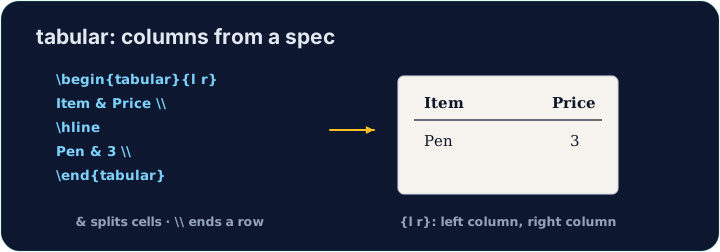
tabularenvironment. You first describe the columns:
{l c r}means three columns: left-aligned, centred, right-aligned.
中文
表格
- 表格使用
tabular环境。你首先要描述列:
\begin{tabular}{l c r}
  left & centre & right \\
\end{tabular}
{l c r}表示三列:l 左对齐、c 居中、r 右对齐。
English
Rows and cells
- Inside,
&jumps to the next column and\\starts a new row:
- The number of cells in each row must match the number of columns you declared.
中文
行与单元格
- 在里面,
&跳到下一列,\\开始新的一行:
\begin{tabular}{l l}
  Apple & 5 \\
  Banana & 3 \\
\end{tabular}
- 每行的单元格数量必须和你声明的列数一致。
English
Lines (optional)
- Add
|between column letters for vertical lines, and\hlinefor horizontal ones:
- For a cleaner look, professionals use the
booktabspackage instead of many lines.
中文
表格线(可选)
- 在列字母之间加
|可画竖线,用\hline画横线:
\begin{tabular}{|l|l|}
  \hline
  Apple & 5 \\ \hline
\end{tabular}
- 为了更整洁的外观,专业人士会改用
booktabs宏包,而不是画很多线。
English
Common mistakes
tabularneeds a column spec like{lcr}; separate cells with&and end rows with\\.- The number of
&per row must fit the column spec.
中文
常见错误
tabular需要列格式如{lcr};单元格用&分隔,行以\\结束。- 每行的
&数量要与列格式相符。
Build a small two-column table with \begin{tabular}{l l}. Separate the two cells in a row with &, and end each row with \\. Add the rows for Bob (30) and Mei (25). · 用 \begin{tabular}{l l} 做一个两列的小表格。同一行的两个单元格用 & 分隔,每行用 \\ 结束。补上 Bob(30)和 Mei(25)两行。
Click Run to compile and preview the PDF. · 点击“运行”编译并预览 PDF。
Add lines to the table. Put \hline at the top, after the header row, and at the bottom, and use |l|l| in the column spec for vertical lines. · 给表格加上线条。在最上方、表头行之后以及最下方各放一条 \hline,并在列格式里用 |l|l| 来画竖线。
Click Run to compile and preview the PDF. · 点击“运行”编译并预览 PDF。